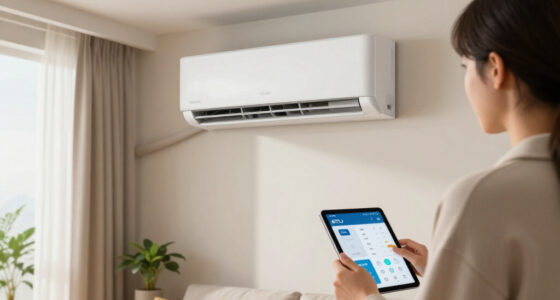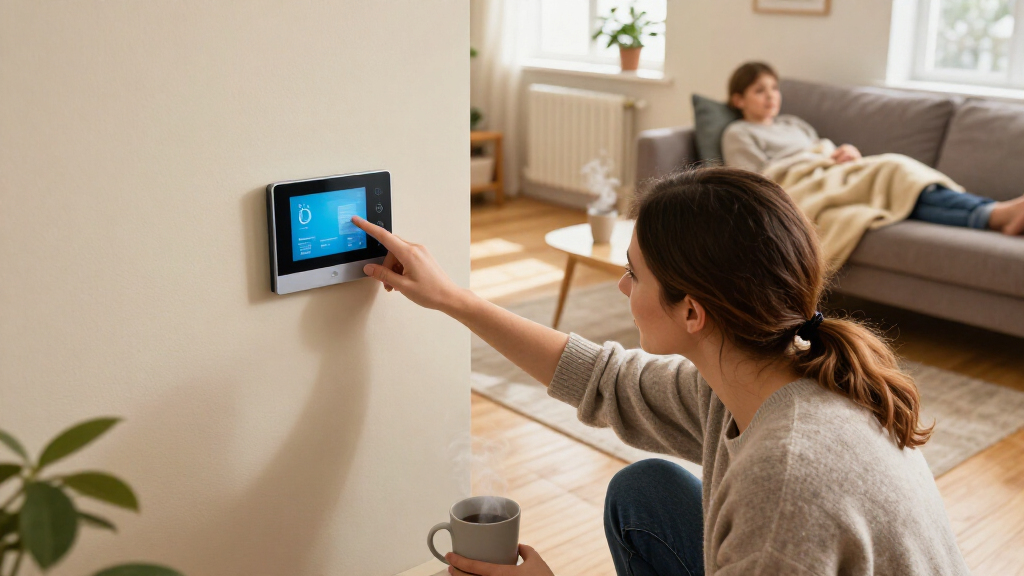

Install and set up a smart thermostat to control your home heating, connect it to your Wi-Fi, and create a schedule that fits your routine. This guide is for homeowners and renters with permission to change the thermostat who can use basic hand tools; wiring varies by heating system, so some installations require a qualified technician. Allow 1–2 hours, including compatibility checks and setup.

Get home appliances delivered free with Prime
- Fast, free delivery on millions of items
- Prime Video, Amazon Music and more included
- Member-only deals all year

Google Nest Thermostat
- ✔ System compatibility: Check with Nest compatibility checker; some system types need a C-wire or power accessory
- ✔ Wiring: Designed to work without a C-wire in many homes
- ✔ Connectivity: 2.4 GHz and 5 GHz Wi-Fi; Bluetooth Low Energy

Honeywell Home RTH9585WF1004 Wi-Fi Smart Color Thermostat
- ✔ System compatibility: Forced-air gas, oil, or electric; hot water; steam; heat pumps with electric backup
- ✔ Wiring: C-wire required; check whether an adapter is needed
- ✔ Excluded systems: 120–240V electric baseboard heat
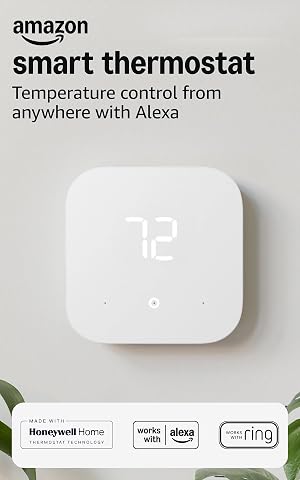
Amazon Smart Thermostat
- ✔ System compatibility: Most 24V HVAC systems
- ✔ Wiring: C-wire or separate power adapter required
- ✔ Connectivity: 2.4 GHz Wi-Fi, 802.11 b/g/n
Difficulty: Intermediate | Time: 1–2 hours
What You’ll Need
Tools & Materials:
- Smart thermostat compatible with your heating system
- Phone or tablet and the thermostat maker’s app
- Screwdriver
- Labels or masking tape and a pen
- Camera or phone for wiring photos
- Thermostat manual and heating system manual, if available
Knowledge:
- Basic use of a screwdriver and phone app
- Ability to identify your heating system type from its documentation or existing thermostat
Check local rules and your lease before changing installed equipment. Read the thermostat maker’s compatibility instructions before buying or removing the old unit. If the wiring is unclear, the system uses line voltage, or you are unsure how to isolate power, stop and contact a qualified heating technician.
Google Nest Thermostat
The Google Nest Thermostat earns our overall spot because its wiring approach can simplify an upgrade in many homes: it is designed to work without a common wire, while Honeywell and Amazon specify a C-wire or compatible adapter. That advantage is especially useful when an existing heating setup has no spare conductor, but it is not universal. Nest notes that heating-only, zone-controlled, and some heat pump systems may still need a C-wire or other power accessory, so we should check compatibility before buying.For everyday heating, Nest combines a programmable schedule with automatic adjustments when the home is empty and schedule suggestions through Savings Finder. Compared with Honeywell’s larger touchscreen, Nest puts more of the setup and ongoing control in the Google Home app; its on-device display is smaller and button-controlled. It supports Google Assistant, Alexa, and Matter-certified voice assistants, which gives it a wider stated voice-control path than Amazon’s Alexa- and Ring-centered offering.The tradeoff is a lighter emphasis on direct, detailed controls at the thermostat itself. The app and compatibility checks are central to the experience, and away adjustments depend on a working internet connection and Wi-Fi. For households that want a straightforward schedule and broad smart-home voice compatibility, Nest is the most adaptable choice here. People who prefer to program a full week from a prominent wall screen may find Honeywell easier to work with.
Pros:
- Designed to operate without a C-wire in many homes
- Away adjustments and schedule suggestions support energy-conscious heating routines
- Works with Google Assistant, Alexa, and Matter-certified voice assistants
- Remote control and notifications are available through Google Home
Cons:
- Some heating-only, zoned, and heat pump systems may still require a C-wire or power accessory
- Small display and button control offer less at-wall interaction than Honeywell’s touchscreen
- Remote features depend on working internet and Wi-Fi
Best for: Households that want app-based scheduling, away adjustments, and a chance to avoid adding a C-wire on a compatible heating system.
Not ideal for: Homes with electric baseboard heat, or buyers who need detailed weekly programming and a large touchscreen at the thermostat.
Bottom line: Choose Nest for flexible app and voice control with potentially simpler wiring, after verifying that your heating system is compatible.
“Choose Nest for flexible app and voice control with potentially simpler wiring, after verifying that your heating system is compatible.”
Honeywell Home RTH9585WF1004 Wi-Fi Smart Color Thermostat
When we want to adjust the heating schedule at the wall instead of reaching for a phone, the Honeywell Home RTH9585WF1004 is the clearest fit. Its color touchscreen and flexible seven-day programming make schedule changes visible and direct. Nest and Amazon put more emphasis on app-led control and automation; Honeywell is better suited to households that want to see the controls on the thermostat itself and tailor each day around a changing routine.For heating, it supports forced-air gas, oil, or electric systems, hot water and steam, and heat pumps with electric backup. It also provides monthly energy reports, personalized energy tips, and reminders for filter or humidifier-pad changes. Those tools can help us keep heating routines and basic maintenance in view, while Amazon’s standout feature is presence-based adjustment and Nest’s is its potential to work without a C-wire in many installations.That hands-on approach has practical limits. Honeywell requires a C-wire, and the supplied compatibility information excludes 120–240V electric baseboard heat. Buyers with heating-only oil furnaces should pay particular attention to the C-wire condition. It also supports Alexa and Google Home, but its scheduling and display are the main reasons to choose it; people seeking the most automated presence response may prefer Amazon, while those with uncertain wiring may find Nest more promising.
Pros:
- Large color touchscreen supports direct schedule changes
- Flexible programming can account for different plans on each day
- Supports forced-air, hot water, steam, and specified heat pump systems
- Energy reports, usage tips, and maintenance reminders add useful context
Cons:
- C-wire required; some homes may need an adapter
- Not compatible with 120–240V electric baseboard heat
- Heating-only oil furnace compatibility depends on having a C-wire
Best for: Households with a compatible low-voltage heating system and C-wire that want visible controls, custom color, and detailed weekly schedules.
Not ideal for: Homes with electric baseboard heat, installations without a C-wire, or buyers who want presence detection to drive most temperature changes.
Bottom line: Pick Honeywell when a wall-mounted touchscreen and detailed weekly heating schedule matter more than automated presence adjustments.
“Pick Honeywell when a wall-mounted touchscreen and detailed weekly heating schedule matter more than automated presence adjustments.”
Amazon Smart Thermostat
The Amazon Smart Thermostat is the most natural match for a home already organized around Alexa or Ring. Its Thermostat Hunches and presence detection can adjust temperature as household patterns change, reducing the need to make every update by hand. That makes it more automation-focused than Honeywell’s explicit touchscreen scheduling. Nest also adjusts when the home is empty, but Amazon’s integration with Alexa and Ring gives this model a particular advantage for buyers who already use those services.Setup is guided in the Alexa app, and temperature control is available through the Alexa and Ring apps, voice, or on-device buttons. The thermostat senses indoor humidity and includes an energy dashboard. For a compatible 24V heating system, that combination can make daily control simple without requiring a large wall interface. Its ENERGY STAR certification is a useful energy-efficiency credential, although actual household savings depend on equipment, weather, and how the schedule is used.The system requirements deserve close attention. Amazon requires a C-wire or separate power adapter, supports only 2.4 GHz Wi-Fi, and does not work with high-voltage 110–240V systems such as electric baseboard heat. Compared with Nest, it offers less flexibility for homes hoping to avoid a C-wire and lacks stated 5 GHz support. Choose it when Alexa-based automation is the priority; skip it if your Wi-Fi is 5 GHz only or your heating is high voltage.
Pros:
- Presence detection and Thermostat Hunches can automate temperature adjustments
- Alexa and Ring integration suits households already using those services
- Guided setup is provided through the Alexa app
- Humidity sensing and an energy dashboard add useful household context
Cons:
- Requires a C-wire or separate power adapter kit
- Supports 2.4 GHz Wi-Fi, not 5 GHz
- Not compatible with 110–240V systems such as electric baseboard heat
Best for: Alexa and Ring households with a compatible 24V system, C-wire or adapter, and 2.4 GHz Wi-Fi.
Not ideal for: Homes using 5 GHz-only Wi-Fi, electric baseboard heat, or heating equipment that needs a thermostat designed for systems outside its stated 24V compatibility.
Bottom line: Choose Amazon for Alexa-centered presence automation if your heating system, wiring, and 2.4 GHz network all meet its requirements.
“Choose Amazon for Alexa-centered presence automation if your heating system, wiring, and 2.4 GHz network all meet its requirements.”
As an Amazon Associate we earn from qualifying purchases.
Before You Start
Smart thermostats do not work with every heating system. Check the manufacturer’s compatibility checker using your system type and the wires behind the existing thermostat. Some models need a C wire or an approved power adapter. A boiler, heat pump, electric baseboard heater, and conventional furnace may use different controls; select a model that explicitly supports yours.
Turn off heating-system power at its breaker or service switch before handling thermostat wires. The thermostat display going dark is not proof that the wiring is safe. Do not touch exposed conductors while power is on. Photograph the original wiring and label each wire by its terminal letter before disconnecting anything.
Step-by-Step Instructions
Step 1: Confirm system compatibility
Identify your heating system type from its manual, boiler or furnace label, or thermostat settings. Remove the existing thermostat’s front cover only as directed by its manual, then compare the terminal labels and wires with the new thermostat’s compatibility guide. Check whether the system needs a C wire, adapter, or separate relay.
Tip:Wire colors do not reliably identify their function. Use the terminal letters and manufacturer’s wiring diagram, not color alone.
Check: The thermostat maker’s compatibility guidance lists your heating system type and the wiring arrangement you have.
Step 2: Choose a suitable thermostat location
Place the thermostat where it can read the room temperature accurately. Choose an interior wall in a frequently used area, away from direct sunlight, drafts, exterior doors, kitchens, radiators, and supply vents. Check the manufacturer’s height and placement guidance.
Tip:A poor location can make the heating run too long or stop before the rest of the home reaches a comfortable temperature.
Check: The planned location is accessible and representative of the temperature in the rooms you want to control.
Step 3: Prepare the wiring
Open the heating system’s breaker or service switch to turn off power. Verify the thermostat screen goes blank, then remove the old thermostat cover. Photograph the wiring and terminal labels. Label each wire with the letter from the terminal it is connected to, and disconnect the wires without letting them fall back into the wall.
Tip:Keep the wires separated and attached to their labels. If you find damaged insulation, unfamiliar terminals, or multiple wires in one terminal, stop and ask a technician to identify them.
Check: Power is off, the original wiring has a clear photo, and every disconnected wire has a legible terminal label.
Step 4: Mount the thermostat base
Feed the labeled wires through the new thermostat’s base plate. Position the plate over the wall opening and use the supplied screws to secure it. Follow the included wiring diagram to connect each wire to its matching terminal; tighten terminals as directed, and do not leave exposed copper touching another wire or the wall plate.
Tip:If the new thermostat requires a C wire and none is present, use only the manufacturer-approved adapter and wiring method. Do not guess at a substitute connection.
Check: The base is firmly mounted, and each wire sits securely in the terminal specified for your system.
Step 5: Attach the thermostat and restore power
Fit the thermostat display or body onto its mounted base as directed by the manual. Check that no wire is pinched, then restore power at the breaker or service switch. Wait for the thermostat to start and follow any initial prompts for language, location, and system type.
Tip:If the display stays blank or the breaker trips, switch power off again. Recheck the wiring against the model’s diagram or contact a technician; do not repeatedly reset a tripping breaker.
Check: The thermostat starts without an error message, and the heating system remains powered normally.
Step 6: Connect the thermostat to the app and Wi-Fi
Install the manufacturer’s app on your phone or tablet. Create or sign in to your account, then follow the app’s pairing instructions. Select your home Wi-Fi network and enter its password. If prompted, allow the app to connect to the thermostat using Bluetooth or a temporary setup network.
Tip:Some models support only a particular Wi-Fi band. Check the manual if the thermostat cannot find your network, and use the network type the manufacturer specifies.
Check: The app shows the thermostat as online and displays its current temperature and heating mode.
Step 7: Set heating preferences and a schedule
Choose the correct heating equipment and operating mode in the thermostat settings. Set a comfortable temperature for the times you are usually home, and lower it during periods when the home is empty or overnight if that suits your needs. Enter wake, leave, return, and sleep times in the app or on the thermostat. Set a temporary hold only when you want to override the schedule.
Tip:Make small schedule changes first, then observe how quickly your home warms. Heating response depends on the building, outdoor conditions, and system type.
Check: The thermostat shows the right heating mode, the schedule matches your routine, and the displayed target temperature is clear.
Step 8: Test heating and review the result
Raise the target temperature a few degrees above the room’s current reading to call for heat. Listen and look for the heating system to start according to its normal delay. Confirm warm air or radiator heat appears, then lower the target below the room temperature and confirm the system stops after its usual run-on period. Review the app for any alerts.
Tip:Boilers and heat pumps may have built-in delays or minimum run times. Use the system manual’s expected behavior rather than assuming an immediate start or stop.
Check: The thermostat calls for heat, the heating system responds, and lowering the target ends the call for heat without an error alert.
Common Mistakes to Avoid
- Buying a thermostat before checking the system and wiring. — Use the manufacturer’s compatibility checker and confirm any C-wire or adapter requirement before purchasing.
- Connecting wires by color instead of terminal label. — Photograph and label wires by the letters on the old terminals, then follow the new thermostat’s wiring diagram.
- Leaving power on while changing wires. — Switch off the heating-system breaker or service switch and verify the thermostat is off before disconnecting conductors.
- Mounting the thermostat near a heat source, draft, or direct sun. — Choose an interior location that reflects the temperature of the rooms you want to heat.
Troubleshooting
Problem: The thermostat does not power on.
Solution: Turn system power off, then confirm the wires are fully seated in the correct terminals and that any required C-wire adapter is installed as directed. Restore power once. If the display remains blank, consult the wiring diagram or call a technician.
Problem: The thermostat cannot connect to Wi-Fi.
Solution: Check that the phone and thermostat are using the network type and frequency supported by the model. Re-enter the password, move the router closer for setup, and retry the app’s pairing steps. Restart the thermostat only as the manual directs.
Problem: The thermostat says it is heating, but the home does not warm.
Solution: Check that the boiler, furnace, or heat pump has power and is not showing a fault. Confirm the thermostat is set to the correct system type and heating mode. Allow for the system’s normal start delay; contact a technician if it still does not produce heat.
Problem: The heating runs when the thermostat should be off, or stops unexpectedly.
Solution: Review the schedule, temporary hold, and temperature settings in the app. If the controls look correct, switch off system power and compare the wiring with the manufacturer’s diagram. Seek professional help if a wire may be in the wrong terminal.
What Success Looks Like
The thermostat is securely mounted, reports the room temperature, stays connected to the app, and follows the heating schedule you set. When you raise its target temperature, the heating system responds; when you lower the target below the room temperature, the call for heat ends according to the system’s normal timing. No wiring, power, or connectivity alerts remain.
Next Steps
Check the temperature and schedule over the next few days, especially during the first heating cycle in the morning and evening. Adjust one schedule setting at a time if rooms feel too warm or too cool, and review the app’s alerts if the thermostat goes offline. Keep the manuals, wiring photo, and labels with your home records. Ask a qualified technician to check the installation if the system cycles abnormally, displays wiring faults, or does not heat reliably.
Frequently Asked Questions
Do I need a C wire for a smart thermostat?
Some models need a C wire for steady power, while others work without one or include an approved adapter. Check the requirements for the exact thermostat model and your heating system before installation.
Can I install a smart thermostat on a boiler?
Some smart thermostats support boiler systems, but compatibility depends on the boiler controls, voltage, and wiring. Confirm your system is listed by the thermostat maker; ask a heating technician if the terminals are unclear.
Why does my thermostat show a different temperature from another thermometer?
Readings can vary because of placement, drafts, sunlight, or sensor differences. Compare devices side by side away from vents and windows, and check whether your thermostat has a temperature offset setting.
How long should I wait for heat after raising the setting?
Many systems start after a short delay, and boilers or heat pumps may take longer due to their controls. Check your system manual for normal timing. If the thermostat calls for heat but the system does not respond after that period, check for a system fault or contact a technician.