
This checklist is for anyone planning a more dependable home network, whether you are choosing core equipment or sorting out the connections around it. Start with the parts you need and the devices you already own.

Get home appliances delivered free with Prime
- Fast, free delivery on millions of items
- Prime Video, Amazon Music and more included
- Member-only deals all year
The sections follow the supplied picks: router, extender, switch, cable advice, modem advice, and the listed UPS Battery Backup pick. Each slot pairs a recommendation or guidance with practical checks to make before buying.
Use the look-for lists to compare requirements, then read the fit notes before committing. Check your existing equipment, connection types, placement options, and the product’s own specifications so each piece suits your setup.
Wi-Fi Router
A router is a central choice in a home network checklist because other decisions depend on how it will fit with your devices and layout. The pick here is the NETGEAR Orbi 970 Series WiFi 7 Mesh System (3 Pack). Before buying, map where your internet connection enters the home and where devices need a reliable connection. Think through room placement and whether the included system format suits the spaces you want to cover.
A common mistake is choosing a router by its name alone, without checking the needs of the rest of the setup. Confirm that your internet service equipment and connected devices work with the features you plan to use. Check the product specifications for supported standards, ports, setup requirements, and any limitations relevant to your home. A system that does not match your connection or placement needs can be an awkward fit, even if its feature list looks appealing.
Review the three-pack configuration against your floor plan and available locations. Make sure you can place the units where they can be connected and powered as required. Compare the stated coverage and compatibility details with your actual home rather than assuming a single specification guarantees performance everywhere.
What to look for:
- Confirm compatibility with your internet service equipment.
- Check supported Wi-Fi standards against your devices.
- Review port types and counts for wired connections.
- Plan placement for all three units using the product requirements.
- Check setup needs and stated coverage for your home layout.
NETGEAR Orbi 970 Series WiFi 7 Mesh System (3 Pack)
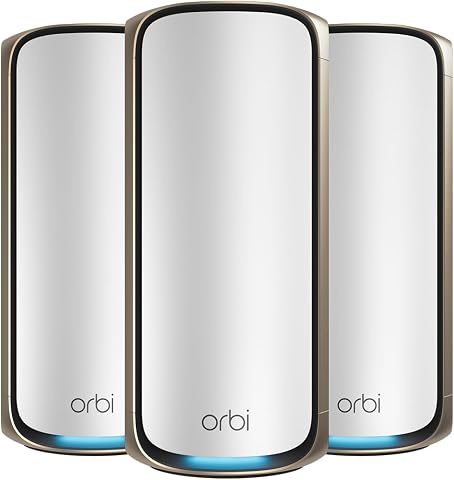
The NETGEAR Orbi 970 Series is a WiFi 7 mesh system designed to provide whole-home coverage up to 10,000 sq ft with fast, reliable internet. It supports up to 200 devices, offers multi-gig wired connections, and features easy setup and management through the Orbi app.
Pros:
- Extensive coverage up to 10,000 sq ft with 3 units
- Supports WiFi 7 with high-speed performance
- Easy setup and management via the Orbi app
- Multiple high-speed wired ports for reliable connections
Cons:
- Requires subscription for advanced security features
- Coverage may vary based on home layout and construction
- Price not specified
Best for: Households considering a three-unit mesh system.
Not ideal for: Homes that need a different configuration or verified compatibility first.
Bottom line: Check service, device, and placement compatibility before choosing the NETGEAR Orbi 970 Series WiFi 7 Mesh System (3 Pack).
Wi-Fi Extender
An extender is a separate checklist slot for shoppers assessing a particular coverage need. The listed pick is the WAVLINK AX3000 Outdoor WiFi 6 Extender. Its product name identifies it as an outdoor extender, so confirm that outdoor placement is relevant to your plan before comparing it with other network equipment. Start by identifying the location where you need a connection and how the extender would connect to your existing network.
A frequent buying mistake is assuming an extender will work with any router or solve every coverage issue. Check the product documentation for router compatibility, supported standards, setup requirements, and placement guidance. Verify that the intended location meets the product’s stated environmental and power requirements. Also consider whether a wired connection or a different network arrangement would better suit the spot you are trying to serve.
For fit, compare the extender’s connection options with your current equipment and make sure you can position it as instructed. Check whether the product’s outdoor placement details match your location, rather than relying on the category name alone. Confirm dimensions, mounting needs, and any requirements in the specifications before purchasing.
What to look for:
- Verify compatibility with your existing router.
- Check the supported Wi-Fi standard and connection options.
- Review outdoor placement and environmental requirements.
- Confirm power, mounting, and setup requirements.
- Compare the stated coverage guidance with the target location.
WAVLINK AX3000 Outdoor WiFi 6 Extender

This dual-band outdoor WiFi extender supports speeds up to 2402 Mbps on 5 GHz and 573 Mbps on 2.4 GHz, with coverage up to 200–300 meters and support for up to 256 connections. Its IP67-rated enclosure, detachable antennas, gigabit Ethernet port, and PoE support suit outdoor installations.
Pros:
- Supports dual-band WiFi 6 speeds up to 3 Gbps
- IP67 enclosure is designed for outdoor weather exposure
- PoE support enables power and data over one Ethernet cable
- Offers multiple operating modes and supports up to 256 connections
Cons:
- Mesh mode works only with WAVLINK products
- The PoE converter is not waterproof
Best for: Shoppers with a specific outdoor coverage requirement.
Not ideal for: Setups without a suitable outdoor location or confirmed compatibility.
Bottom line: Confirm placement, power, and router compatibility for the WAVLINK AX3000 Outdoor WiFi 6 Extender.
Ethernet Switch
A switch belongs on the checklist when you need to connect multiple wired devices or organize wired network connections. The pick is the NETGEAR MS510TXM 10-Port 10G Multi-Gigabit Smart Managed Switch. Before deciding, list the devices that will connect by Ethernet and note the ports and link capabilities each one requires. Then compare that list with the switch’s product specifications.
A common mistake is treating every Ethernet port as interchangeable. Check port speeds, connector types, and whether the switch’s management features fit the way you want to configure your network. Confirm that connected devices and any other network equipment support the connections you intend to use. A switch cannot make a device support a capability it does not have, so verify the full connection path.
For fit, count current devices and allow for the connections you actually expect to use. Review the product dimensions, power needs, placement options, and setup documentation. The model name describes a 10-port smart managed switch; use its detailed specifications to confirm the exact port mix and capabilities before purchase.
What to look for:
- Count wired devices and required ports.
- Verify port speeds and the exact port mix.
- Check compatibility across the switch, router, and connected devices.
- Decide whether managed features suit your setup.
- Review dimensions, power, placement, and configuration requirements.
NETGEAR MS510TXM 10-Port 10G Multi-Gigabit Smart Managed Switch

The NETGEAR MS510TXM is a smart managed switch with eight Multi-Gigabit Ethernet ports and two 10G SFP+ fiber ports. It supports multiple connection speeds, remote management through NETGEAR Insight for one year, and desktop or rack mounting; its fanless design provides silent operation.
Pros:
- Supports connection speeds up to 10 Gbps
- Auto-negotiating ports work with existing Cat5e or Cat6 cables
- Fanless design operates silently
- Supports desktop and rack mounting
Cons:
- Only eight ports are RJ-45 Ethernet ports
- Remote management subscription is included for one year
Best for: Setups with multiple wired devices and suitable connections.
Not ideal for: Homes that do not need a switch or its managed features.
Bottom line: Match the NETGEAR MS510TXM 10-Port 10G Multi-Gigabit Smart Managed Switch to your device and port requirements.
Network Cable
No specific product is listed for this slot, so choose a cable by checking the equipment at both ends of the connection. Note the connector type, required length, and any performance requirements stated by your devices. The right cable is the one that fits the connection and meets the specifications of the equipment it will join.
A common mistake is buying by appearance or an assumed category without checking the actual endpoints. Confirm the connector type and cable category recommended by your router, switch, or other device documentation. Measure the route, including bends and the path around furniture, and avoid choosing a length that leaves the connection strained or creates excess cable to manage.
Check whether the cable will run indoors or outdoors and follow the equipment guidance for that environment. For a tidy installation, consider how the cable will be routed and secured, while keeping access to connected devices practical. Verify the length and rating on the product listing before ordering.
What to look for:
- Match connector types at both ends.
- Choose a length that follows the planned route.
- Check the cable category recommended by connected equipment.
- Confirm the cable is suitable for its intended environment.
- Review routing and cable management needs.
Cable Modem
No product is specified for the cable modem slot. The main buying step is to confirm what your internet service requires and which equipment your provider supports. Check the service details and provider guidance before selecting a modem, then compare the required connection type with your home setup. This compatibility check should come before choosing a particular model.
A common mistake is assuming that a modem will work with every provider or service plan. Confirm approval or support with the provider and check the modem specifications against the service you use. Also determine whether your current setup uses a separate modem and router or a combined device, so you do not buy equipment that fails to match your network arrangement.
Review connection ports, setup steps, and any provider-specific requirements in the documentation. If you plan to use a separate router, confirm how the modem connects to it. Check that the chosen device supports the service’s stated requirements, and clarify any account or activation steps with the provider before replacing equipment.
What to look for:
- Confirm provider support for the specific modem.
- Match the modem to your service requirements.
- Check whether your setup uses separate or combined equipment.
- Verify connection ports for the router or other devices.
- Review activation and setup requirements with the provider.
UPS Battery Backup
The supplied pick for this slot is Network Cable Management Comb for Cables up to 0.25 Inches. Its name describes a cable management comb, so compare that function with what you need for network reliability before treating it as a UPS battery backup. The product name alone does not establish that it provides battery backup.
A common buying mistake is relying on a category label without verifying the actual product function. Read the product description and specifications to confirm whether it includes a battery, backup outlets, and the connections needed for the network equipment you want to support. If it is a cable comb, check whether the cable diameter limit matches your cables and whether the product fits your routing plan.
For a backup unit, list the devices you intend to connect and check their power requirements against the unit documentation. Review outlet types, battery backup details, and placement requirements. For the listed comb, verify the 0.25-inch cable limit against your cables and the routing space available before buying.
What to look for:
- Confirm the listed product’s actual function in its specifications.
- For a UPS, verify battery backup and outlet details.
- Check power requirements for the equipment to be connected.
- For the cable comb, check cable diameter up to 0.25 inches.
- Review placement and cable routing fit.
Network Cable Management Comb for Cables up to 0.25 Inches

This cable comb organizes up to 48 cables at once, including Cat 5e and Cat 6 cables up to 0.25 inches (6.35 mm) in diameter. Its sliding ring and grooved, finger-friendly design help straighten and bundle cables while reducing wear, and its compact size makes it easy to store.
Pros:
- Combines up to 48 cables at once
- Helps straighten and organize cables efficiently
- Designed to reduce cable wear during grooming
- Compact and lightweight for storage
Cons:
- Limited to cables up to 0.25 inches in diameter
Best for: Shoppers checking whether the listed item fits this slot.
Not ideal for: Anyone needing confirmed battery backup without further product details.
Bottom line: The listed Network Cable Management Comb for Cables up to 0.25 Inches is described as a cable comb, so verify its function before relying on it for backup.
Work through the specifications one device at a time, and keep notes on ports, placement, and compatibility. A little checking before you buy makes it easier to assemble a setup that fits your home and the connections you rely on.
Black Friday Picks

Sony WH-1000XM6 Wireless Noise-Canceling Headphones, Black
As an affiliate, we earn on qualifying purchases.